Browser extension
hCaptcha accessibility help with the browser extension
Use the easycaptcha Chromium extension for hCaptcha image recognition. Learn about the free allowance, paid keys, supported browsers, and troubleshooting.
By the easycaptcha team · Published
An image challenge can interrupt a task that otherwise works well with your browsing setup. The easycaptcha Chromium extension provides hCaptcha recognition in the browser, so you do not need to copy a challenge into a separate application. It handles recognition; you remain responsible for the rest of the page’s workflow.
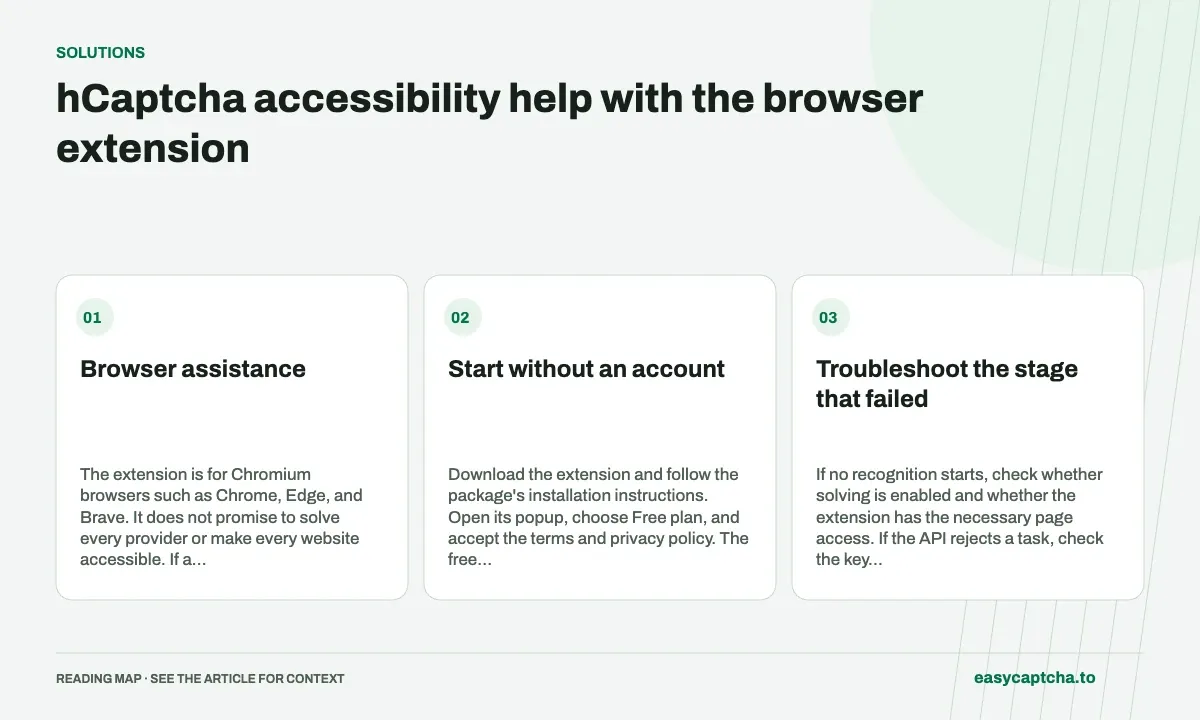
Browser assistance
The extension is for Chromium browsers such as Chrome, Edge, and Brave. It does not promise to solve every provider or make every website accessible. If a site’s own form, navigation, or session handling is inaccessible, recognition alone will not fix those barriers.
Start without an account
Download the extension and follow the package’s installation instructions. Open its popup, choose Free plan, and accept the terms and privacy policy. The free plan provides 25 hCaptcha recognition groups per day. Eligibility checks apply, and unused recognitions do not accumulate.
A recognition group is the billing and allowance unit. A challenge with multiple groups can use multiple recognitions. The allowance applies to recognition, rather than the token API. Read the free-plan documentation for the renewal flow and limits.
If you need paid usage, create an account, add prepaid credit, and create an API key in the dashboard. Enter that key in the extension popup. You can disable new solving with the Solve hCaptcha setting; work that was already submitted can still finish.
Troubleshoot the stage that failed
If no recognition starts, check whether solving is enabled and whether the extension has the necessary page access. If the API rejects a task, check the key and balance or the free-plan allowance. If recognition completes but the site still refuses the form, the failure may be in the surrounding site flow rather than recognition itself.
Keep the task or request ID when contacting support. Do not send your API key, account password, or the contents of a sensitive form. An error description and the affected challenge type are more useful than an unredacted screenshot of a checkout or account page.
What website owners can improve
Users should not have to diagnose a verification widget to finish an important action. Preserve form data after failure, explain how to retry, and provide a usable support route. Test keyboard focus, zoom, screen readers, and challenge expiration as part of the whole form.
The extension is an assistance option, not a certification of accessibility. Website owners should review their own flow with users who rely on assistive technology. Our CAPTCHA accessibility guide gives a practical review checklist, and the extension documentation covers configuration in more detail.
Frequently asked questions
Which browser can use easycaptcha recognition assistance?
The extension targets Chromium browsers. Follow the download and installation instructions for the supported package.
Does the extension cover every verification provider?
Its recognition assistance is for supported hCaptcha task families. Choose the documented integration that matches the challenge in your workflow.
Can I try easycaptcha browser assistance for free?
Yes. Install the Chromium extension and activate its free plan for 25 recognitions a day, without an account or credit. Larger or multi-round challenges can use multiple recognition groups.