Accessibility
CAPTCHA accessibility: how to review your form
Review image challenges, keyboard navigation, screen-reader feedback, expiration, and alternative routes as part of an accessible form.
By the easycaptcha team · Published
For a visitor who cannot complete a challenge, the rest of a website may be effectively out of reach. The barrier can come from the challenge itself, but also from focus handling, error messages, or a recovery path that loses their work. Reviewing accessibility means following that whole experience.
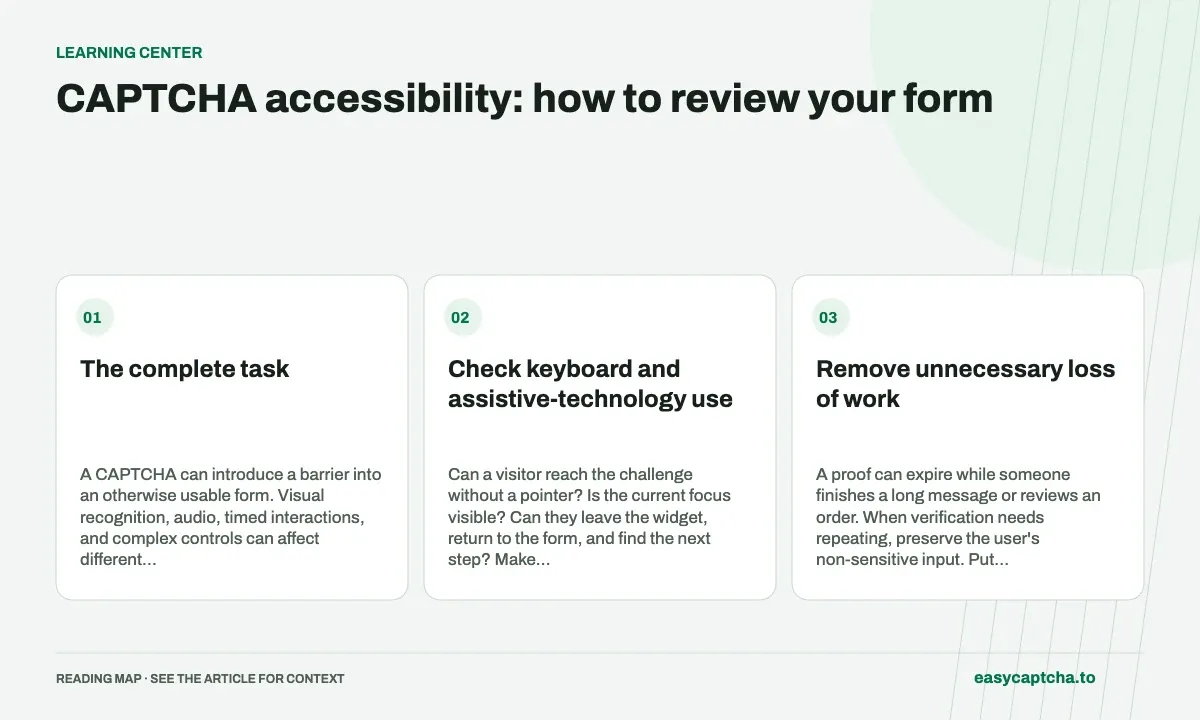
The complete task
A CAPTCHA can introduce a barrier into an otherwise usable form. Visual recognition, audio, timed interactions, and complex controls can affect different people in different ways. The W3C’s Inaccessibility of CAPTCHA discusses those barriers and alternatives.
Start with what the visitor is trying to achieve: send a message, sign in, register, or complete a purchase. A review should follow that task from the first input to the final confirmation, including challenge errors. Testing only the widget misses problems in focus management, validation, and recovery.
Check keyboard and assistive-technology use
Can a visitor reach the challenge without a pointer? Is the current focus visible? Can they leave the widget, return to the form, and find the next step? Make those observations at ordinary and enlarged text sizes.
With a screen reader, check labels, instructions, waiting states, failure messages, and completion feedback. A visual tick is not enough if the visitor does not hear that verification finished. Do not assume that an audio alternative solves every accessibility problem; evaluate it with the people and devices it is intended to help.
Remove unnecessary loss of work
A proof can expire while someone finishes a long message or reviews an order. When verification needs repeating, preserve the user’s non-sensitive input. Put the recovery step next to the explanation, and avoid returning them to a blank page.
Check an interrupted connection, a provider error, and an unsuccessful submission after a successful challenge. The visitor should have a clear way to retry. Avoid indefinite spinners and unexplained disabled buttons.
Offer an alternative that serves the same purpose
An alternative route is useful only if a visitor can complete the original task through it. A support link requiring the same inaccessible verification flow does not provide an independent path. Think through who answers requests, what information is needed, and how long the visitor may have to wait.
If your threat model permits a less interactive verification method, evaluate it with real users and representative devices. Background computation can move the burden to the device; it does not automatically make the surrounding form accessible. See proof-of-work tradeoffs.
Assistance is different from compliance
The easycaptcha extension offers hCaptcha recognition assistance in Chromium browsers. It does not certify the website, remove every barrier, or establish compliance with an accessibility standard. Our extension guide describes its scope and free allowance.
Keep an ongoing review process. Include people who use assistive technology, document what failed, and retest after provider or application updates. Measure whether visitors complete the intended action, not just whether the challenge reports a solution.
Frequently asked questions
What makes an hCaptcha flow difficult to access?
The image task, keyboard handling, errors, timing, and lost form state can all create barriers. Review the visitor's complete task.
Can easycaptcha help with inaccessible hCaptcha image challenges?
The Chromium extension provides recognition assistance for supported hCaptcha tasks. It complements a usable form and recovery path rather than certifying a website's accessibility.
Can I try easycaptcha browser assistance for free?
Yes. Install the Chromium extension and activate its free plan for 25 recognitions a day, without an account or credit. Larger or multi-round challenges can use multiple recognition groups.