Browser extension
Troubleshooting reCAPTCHA assistance in the extension
Troubleshooting reCAPTCHA assistance in the extension. Follow practical setup steps and checks for your easycaptcha reCAPTCHA workflow.
By the easycaptcha team · Published
Open the extension popup and check Global and reCAPTCHA. Confirm that the extension has the necessary page access and that the selected plan is active. A disabled provider switch can explain why no recognition starts.
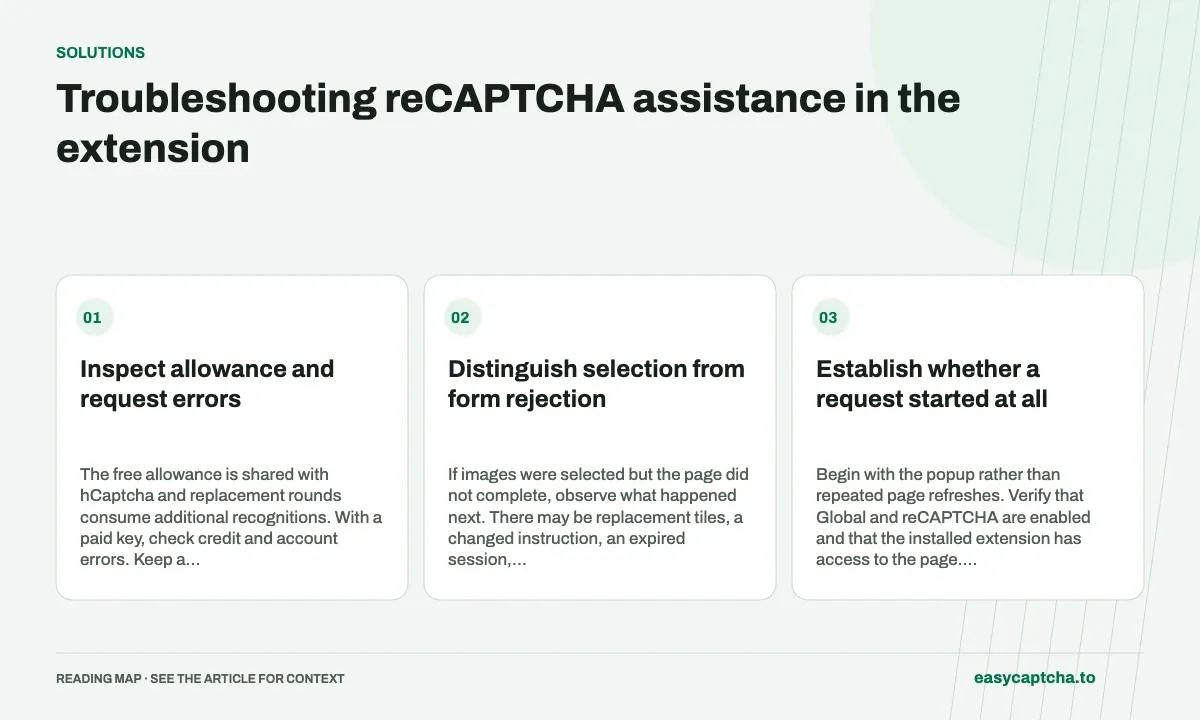
Inspect allowance and request errors
The free allowance is shared with hCaptcha and replacement rounds consume additional recognitions. With a paid key, check credit and account errors. Keep a task or request ID when available rather than repeatedly restarting the challenge without evidence.
Distinguish selection from form rejection
If images were selected but the page did not complete, observe what happened next. There may be replacement tiles, a changed instruction, an expired session, or another invalid form field. Report the visible stage without sending passwords or private form contents.
Establish whether a request started at all
Begin with the popup rather than repeated page refreshes. Verify that Global and reCAPTCHA are enabled and that the installed extension has access to the page. Confirm which plan is selected. If these prerequisites are missing, changing the challenge images will not establish whether recognition works.
Next, note the visible behavior: no activity, an account or allowance error, selections that occur, or replacement images that remain. These observations locate the failure stage. If a task or request ID is available, retain it with the time of the attempt so support can distinguish a rejected submission from work that completed later.
Distinguish free-plan and paid-key problems
The extension Free plan has a shared daily allowance across hCaptcha and reCAPTCHA. Replacement rounds use more recognition requests, so a short list of visited pages can still consume the allowance. Check the reported plan state instead of estimating remaining use solely from the number of visible challenges.
With a paid key, verify the account configuration and credit through the documented account flow. Do not paste the key into a screenshot or support message. A key or balance error is different from an image-recognition problem; repeated challenge resets will not repair account access and can make the original sequence harder to reconstruct.
Observe what happens after the first selections
If the extension selected images, wait to see whether those cells are replaced. A repeating challenge can require additional rounds before verification. Record whether the new images loaded and whether the extension continued handling them. “The first click happened” and “the challenge finished” are different observations.
If the instruction changed or the page navigated, note that transition. If the challenge finished but the form stayed on screen, inspect its own messages. An invalid required field or expired page session can prevent submission after successful image assistance. Describe that final state rather than reporting every unfinished form as the same CAPTCHA failure.
Prepare a concise support report
Include browser and extension version, selected plan, Global and reCAPTCHA settings, approximate attempt time, grid mode if known, and any task identifiers. Describe the last observable stage in ordinary language: for example, replacements loaded but no further selections appeared. Mention whether the issue repeats in a short controlled flow.
Leave out account passwords, private API keys, and sensitive form contents. If a screenshot is needed, crop or redact unrelated page data. A reproducible sequence and a task ID are usually more useful than a full recording of a personal account page. See the support diagnostic packet guide for broader reporting guidance.
Compare one change at a time
When investigating a reproducible issue, record the original setup and change one relevant setting before retrying. Switching plans, updating the browser, resetting the page, and toggling both provider controls at once can make a successful retry impossible to explain. A controlled comparison preserves evidence about which prerequisite was missing.
Use a short workflow for diagnosis rather than repeatedly re-entering a long private form. Note whether the failure occurs before recognition, during replacement handling, or after the challenge appears complete. If only one page is affected, include that scope in the report while removing sensitive query parameters and account-specific contents from any shared URL or capture.
After a fix, repeat the stage that failed. Seeing the first images selected does not validate a repair to later replacement handling, and changing account credit does not establish that form submission recovery works. Close the report with the observed outcome and any remaining unknowns. This gives support a concrete resolution instead of a vague claim that the extension worked on a different page.
Frequently asked questions
What should I include in a support report?
Include the affected stage, settings, grid mode, and available task IDs. Leave API keys and sensitive form data out.
Why might nothing happen when a challenge appears?
Check Global, the reCAPTCHA switch, page access, and the selected plan before investigating image decisions.
Does an unfinished form always mean recognition failed?
No. Replacement rounds, changed instructions, expired sessions, and unrelated form validation can each prevent completion at different stages.