Browser extension
reCAPTCHA image assistance with the browser extension
reCAPTCHA image assistance with the browser extension. Follow practical setup steps and checks for your easycaptcha reCAPTCHA workflow.
By the easycaptcha team · Published
Install the easycaptcha Chromium extension using the download instructions. Open the popup and enable both Global and reCAPTCHA. The extension selects supported image grids and handles replacement tiles within the browser workflow.
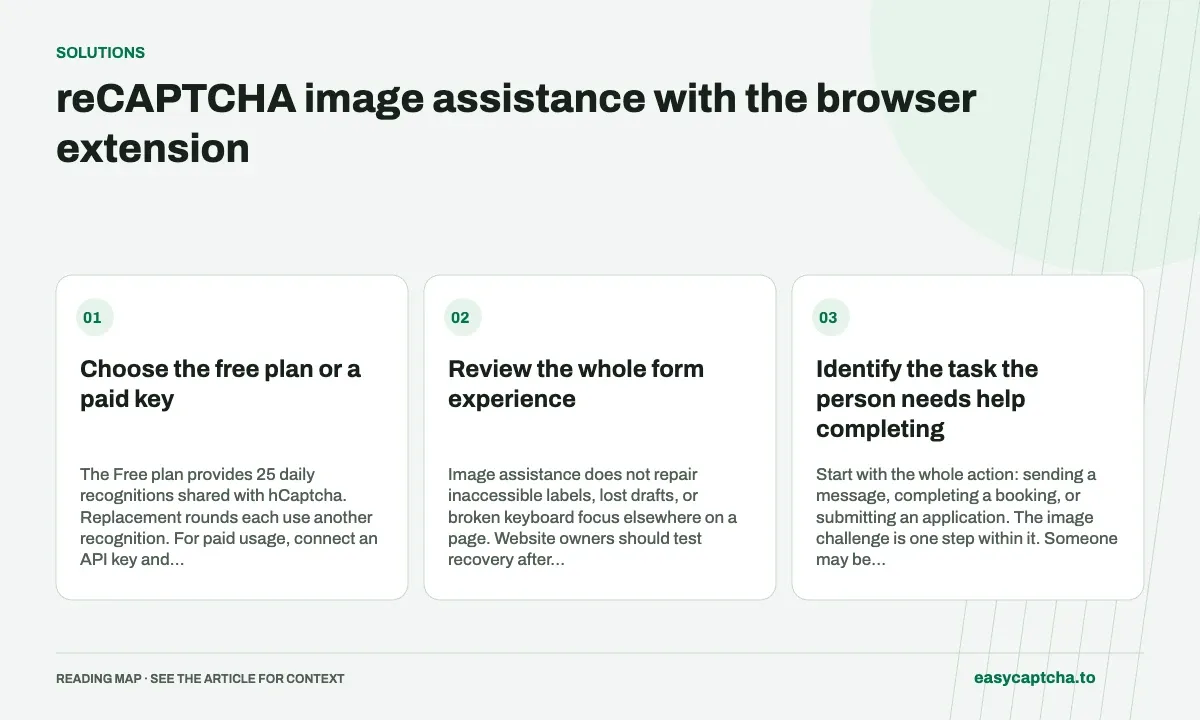
Choose the free plan or a paid key
The Free plan provides 25 daily recognitions shared with hCaptcha. Replacement rounds each use another recognition. For paid usage, connect an API key and check available credit before starting a long session.
Review the whole form experience
Image assistance does not repair inaccessible labels, lost drafts, or broken keyboard focus elsewhere on a page. Website owners should test recovery after verification failure and preserve user input. Observe whether the requested action actually completes.
Identify the task the person needs help completing
Start with the whole action: sending a message, completing a booking, or submitting an application. The image challenge is one step within it. Someone may be able to enter all their information successfully and still be blocked by recognizing small objects, interacting with replacement images, or recovering after the challenge closes.
The extension assists with supported reCAPTCHA image recognition in Chromium browsers. It does not change the website’s underlying labels, keyboard navigation, or session rules. Evaluating it against a real task makes that boundary visible: observe whether the person can continue from the challenge and reach a clear confirmation, rather than stopping the test when images are selected.
Prepare a browser session that can be diagnosed
Install the supported package from the download page, open the popup, and select the intended plan. Enable both Global and reCAPTCHA, then check that the extension has access to the relevant page. Use a short, low-stakes workflow for the first trial so setup problems do not interrupt a long draft.
Record the selected plan and provider switches when comparing sessions. A disabled setting or exhausted allowance produces a different problem from an incorrect image decision. If a team is helping someone configure the extension, explain those controls in plain language and avoid asking them to copy their paid key into a support message.
Plan for replacement rounds and exhausted allowance
A repeating challenge can replace selected images and require further recognition. The extension handles supported replacement tiles, but each replacement round uses another recognition. The Free plan’s 25 daily recognitions are shared with hCaptcha, so the number of completed challenges will depend on the work each session requires.
For longer sessions, decide in advance how the user will recover if assistance becomes unavailable. That may involve checking paid account credit, using a site’s support route, or returning later without losing entered information. Do not ask someone to repeatedly submit a sensitive form merely to diagnose whether the plan is active.
Review recovery with website owners
A useful accessibility review includes opening the challenge by keyboard, tracking focus when it appears and closes, recovering after expiration, and finding a meaningful error message. Repeat the review with a draft already entered. If failure clears the draft or moves focus unpredictably, successful recognition alone will not produce a usable experience.
Provide a support route that does not require the same inaccessible interaction the person is reporting. Measure whether users can complete the protected action, and consult people who use assistive technology as part of the review. The CAPTCHA accessibility guide offers broader context for examining the form and verification step together.
Evaluate assistance with the person using the workflow
Ask the participant to complete a representative action with their usual browsing setup, and observe where they need to change tools, repeat input, or seek help. Record what assistance changed at the image step and what barriers remained elsewhere. Do not infer that a workflow is accessible solely because the evaluator can complete it with a mouse.
Include a recovery attempt after a challenge or form error. Check whether focus returns to a useful place, the draft remains available, and the page explains what to do next. A successful path that works only on the first try leaves important user needs untested. Replacement-heavy challenges are particularly useful for seeing whether instructions and status remain understandable during a longer interruption.
Website owners should use that evidence to improve their own interaction rather than making extension installation the only support response. Provide a usable contact or recovery route and review the result with the people affected. Browser recognition assistance can be one option within that process, while the actual measure remains whether the person can finish the task reliably and understand its outcome.
Frequently asked questions
Which controls enable reCAPTCHA assistance?
Enable both Global and reCAPTCHA in the extension popup.
Does image assistance make the entire form accessible?
No. Labels, keyboard focus, session handling, errors, and draft recovery still need to work throughout the website flow.
What should I test after the extension selects images?
Observe replacement handling, challenge completion, and the final form confirmation. Also check recovery without losing entered content.