Accessibility review
Auditing a CAPTCHA-gated task for accessibility
Review the full user task, including progress, errors, time, retries, and assistance, instead of treating a widget-level check as proof the form works.
By the easycaptcha team · Published
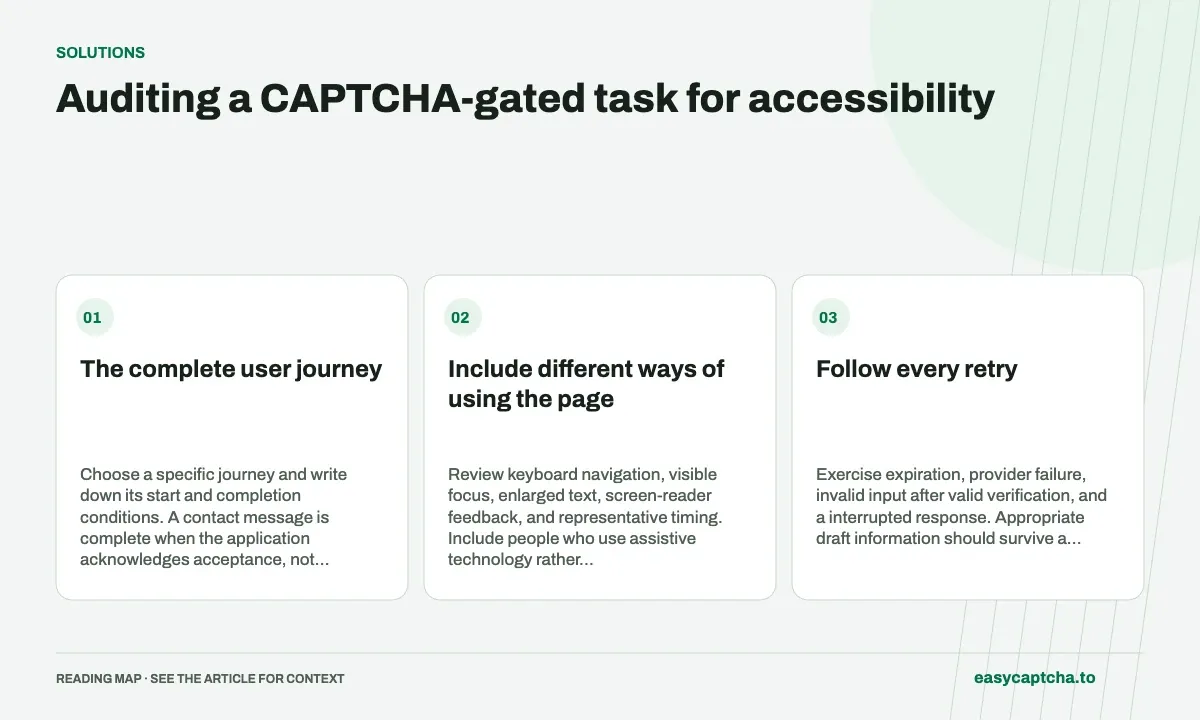
A visitor may be able to focus the checkbox but still be unable to understand the question, discover an error, or recover the form. An audit that stops after a keyboard click misses the actual goal: completing the action the site offered.
The complete user journey
Choose a specific journey and write down its start and completion conditions. A contact message is complete when the application acknowledges acceptance, not when a challenge shows a tick. A booking or account action needs its own authoritative outcome.
Include different ways of using the page
Review keyboard navigation, visible focus, enlarged text, screen-reader feedback, and representative timing. Include people who use assistive technology rather than assuming a developer’s simulation covers every barrier. The W3C CAPTCHA accessibility note provides context for why alternatives matter.
Observe where the visitor pauses, what they understand about waiting, and whether the page explains a failure. A background challenge still needs an accessible surrounding form.
Follow every retry
Exercise expiration, provider failure, invalid input after valid verification, and a interrupted response. Appropriate draft information should survive a retry, and each protected attempt should obtain evidence that meets the current policy.
Check whether focus moves to useful instructions and whether the retry button actually becomes available again. A readable message is not enough if the visitor cannot reach the associated control.
Evaluate the assistance route
If support is offered as an alternative, use it in the test. Determine whether it asks for the same inaccessible verification, whether acknowledgement arrives, and whether staff can help complete the original task.
Recognition assistance such as easycaptcha can be one option for hCaptcha in Chromium. It is not certification that the site is accessible or compliant. The owner still needs to review controls beyond the challenge.
Report barriers by their effect
Describe the step, affected use mode, observed behavior, and completion impact. Prioritize failures that trap the visitor, erase significant work, or create uncertain accepted actions. Avoid reducing the report to one unsupported accessibility score.
The accessibility guide provides general checkpoints. Long-form recovery covers persistence, and abandonment analysis helps discover people who never reached a server-side error that would otherwise reveal the barrier.
Frequently asked questions
Should an accessibility audit stop at the CAPTCHA widget?
No. Review the complete task, including navigation, input, focus, errors, verification, and recovery after a failed or expired proof.
What should a CAPTCHA recovery test include?
Check whether visitors can understand the failure, keep their work, obtain fresh verification, and complete the intended action.
Can I try easycaptcha browser assistance for free?
Yes. Install the Chromium extension and activate its free plan for 25 recognitions a day, without an account or credit. Larger or multi-round challenges can use multiple recognition groups.